
Projects
Project management including creating workflows, retrieving workflow details and it's steps.
Quick Navigation
What is a Project?
In Intellistack Streamline, a workflow is always contained within a project. A workflow consists of a collection of steps connected to one another by edges that identify the step that precedes and follows it.
Every step has a type that defines the available configuration options for that specific step.
This structure is represented through a declarative JSON schema that can be used to create and update the entire workflow.
Projects and workflows are managed entirely through a declarative JSON schema, making them easy to version control and programmatically manage.
Core Concepts
Schema structure overview
The general structure of a project/workflow is represented through a fairly simple structure.
The project is the top-level object, along with its basic configuration.
A collection of steps can be added to the schema. Every step contains its own basic configuration, as well as step-specific configuration. The edges, which represent the connection between the previous and next steps of the workflow, are also defined on the step itself.
For more details on the available options for each types of step, please refer to individual step documentation.
{
  "name": "Project Name",
  "workflow": {
    "accessType": "Access Type",
    "name": "Workflow Name",
    "steps": [
      {
        "description": "Step Name",
        "type": "Step type",
        "config": {
          //Step type specific configuration
        },
        "edges": [
          //Step edges
        ]
      }
    ]
  }
}
Mapping
Fields that support mapping let you reference data from a previous step and pass it into the current one. Streamline also supports session metadata fields (session id, start date, user id, project id) that are always available regardless of step order. For the full syntax and all available sources, see Mapping.
Edges
Edges define the connection between two steps. In a declarative schema, you must use the edge property to define the relationship between the step and the step that immediately precedes it.
{
  "edges": [{ "prev": "Previous Step" }]
}
A few things to note:
- Edges must always be a collection.
- The first step in your workflow must define an empty collection
- Only one step can reference a specific step as its previous step.
How-To Guides
Let's explore common scenarios for managing Projects and Workflows.
Creating a new Project
Creating a project and its related workflow can be done by using the create project endpoint.
This endpoint accepts both properties for the project to be created, as well as the underlying schema definition for the workflow it contains.
Let's examine a simple example for creating a new employee onboarding project.
{
  "name": "Employee Onboarding",
  "workflow": {
    "accessType": "public",
    "name": "Employee Onboarding",
    "steps": [
      {
        "description": "Form",
        "type": "data_capture",
        "config": {
          "type": "data-capture",
          "readonly": false,
          "components": [
            {
              "type": "group",
              "readonly": false,
              "components": [
                {
                  "type": "static_content",
                  "readonly": false,
                  "components": [],
                  "validation": {
                    "required": false
                  },
                  "presentation": {
                    "form": {
                      "type": "heading",
                      "label": "Header",
                      "level": 1,
                      "content": "Employee Onboarding",
                      "textAlign": "left"
                    }
                  }
                },
                {
                  "id": "employee_name",
                  "type": "group",
                  "label": "",
                  "subType": "name",
                  "parentId": "",
                  "readonly": false,
                  "components": [
                    {
                      "id": "1c42e8e6-2df4-4e5d-bfcc-c6286064322e",
                      "type": "name_part",
                      "label": "First Name",
                      "groupId": "first",
                      "parentId": "employee_name",
                      "readonly": false,
                      "components": [],
                      "validation": {
                        "required": false
                      },
                      "presentation": {
                        "form": {
                          "type": "input",
                          "label": "First name one",
                          "helpText": "First name one"
                        }
                      }
                    },
                    {
                      "id": "76a965c8-ebb7-4c08-9940-ad441bf81479",
                      "type": "name_part",
                      "label": "Last Name",
                      "groupId": "last",
                      "parentId": "employee_name",
                      "readonly": false,
                      "components": [],
                      "validation": {
                        "required": false
                      },
                      "presentation": {
                        "form": {
                          "type": "input",
                          "label": "Last name",
                          "helpText": "Last name"
                        }
                      }
                    }
                  ],
                  "validation": {
                    "required": false
                  },
                  "presentation": {
                    "form": {
                      "type": "full_name",
                      "label": "Name"
                    }
                  }
                },
                {
                  "id": "email",
                  "type": "email",
                  "label": "",
                  "parentId": "group2",
                  "readonly": false,
                  "components": [],
                  "validation": {
                    "format": "email",
                    "required": false
                  },
                  "presentation": {
                    "form": {
                      "type": "input",
                      "label": "Email",
                      "placeholder": "[email protected]"
                    }
                  }
                }
              ]
            }
          ],
          "presentation": {
            "form": {
              "label": "",
              "submitLabel": "Onboard"
            }
          }
        },
        "edges": []
      }
    ]
  }
}
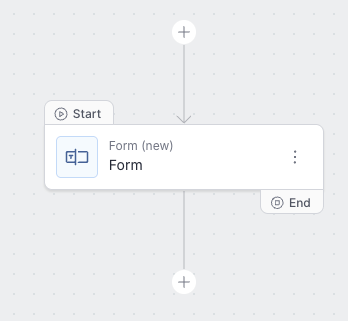
This will result in creating a simple project with a workflow containing a single Form step.
Building a multi-step workflow
Since our schema is a declarative definition of our workflow, we can simply send the new desired state of the structure, and the workflow will automatically update to reflect its new state.
Building on our previous example, we can add a new notification step to warn us of a new form submission.
{
"name": "Employee Onboarding",
"workflow": {
"accessType": "public",
"name": "Employee Onboarding",
"steps": [
{
"description": "Form",
"type": "data_capture",
"config": {
"type": "data-capture",
"readonly": false,
"components": [
{
"type": "group",
"readonly": false,
"components": [
{
"type": "static_content",
"readonly": false,
"components": [],
"validation": {
"required": false
},
"presentation": {
"form": {
"type": "heading",
"label": "Header",
"level": 1,
"content": "Employee Onboarding",
"textAlign": "left"
}
}
},
{
"id": "employee_name",
"type": "group",
"label": "",
"subType": "name",
"parentId": "",
"readonly": false,
"components": [
{
"id": "employee-first-name",
"type": "name_part",
"label": "First Name",
"groupId": "first",
"parentId": "employee_name",
"readonly": false,
"components": [],
"validation": {
"required": false
},
"presentation": {
"form": {
"type": "input",
"label": "First name one",
"helpText": "First name one"
}
}
},
{
"id": "employee-last-name",
"type": "name_part",
"label": "Last Name",
"groupId": "last",
"parentId": "employee_name",
"readonly": false,
"components": [],
"validation": {
"required": false
},
"presentation": {
"form": {
"type": "input",
"label": "Last name",
"helpText": "Last name"
}
}
}
],
"validation": {
"required": false
},
"presentation": {
"form": {
"type": "full_name",
"label": "Name"
}
}
},
{
"id": "email",
"type": "email",
"label": "",
"parentId": "group2",
"readonly": false,
"components": [],
"validation": {
"format": "email",
"required": false
},
"presentation": {
"form": {
"type": "input",
"label": "Email",
"placeholder": "[email protected]"
}
}
}
]
}
],
"presentation": {
"form": {
"label": "",
"submitLabel": "Onboard"
}
}
},
"edges": []
},
{
"description": "Notification",
"type": "notification",
"config": {
"notifications": [
{
"label": "Notification 1",
"smsConfig": null,
"emailConfig": {
"from": "Employee Onboarding",
"message": "<p>{{`Form`.`employee-first-name`}} {{`Form`.`employee-last-name`}}filled out the employee onboarding form. <br><span style=\"font-size: 14px;\">Reach out to them at</span><span style=\"box-sizing: border-box; margin: 0px; padding: 0px;\"> </span>to complete the onboarding process.</p>",
"replyTo": "[email protected]",
"subject": "Employee Onboarding",
"recipients": ["[email protected]"],
"attachments": []
}
}
]
},
"edges": [
{
"prev": "Form"
}
]
}
]
}
}A few key elements to notice:
- Our second step, the notification, now has a value configured in the "edges" property that references the previous step. This property is required for any additional step in the workflow.
- The "message" property of that step uses our mapping syntax to use values from the previous step.
Understanding the __meta field in project responses
__meta field in project responsesWhen you create or retrieve a project using the Schema API the response includes a special __meta field that provides important metadata about the project and its workflow.
The __meta object contains the following properties:
workflowId- The UUID of the workflow associated with this project. This can benullif the workflow hasn't been created yet.sessionStartUrl- A POST endpoint URL that can be used to start a new workflow session/execution.webhookSessionStartUrl- A POST endpoint URL specifically designed for webhook-triggered workflow sessions.
Example __meta response
__meta response{
"__meta": {
"workflowId": "dbd635f4-226e-4410-8f3a-0fbe4f4d4e0c",
"sessionStartUrl": "https://us.streamline.intellistack.ai/v1/sessions",
"webhookSessionStartUrl": "https://us.streamline.intellistack.ai/v1/sessions/webhooks/a1e273b1-04d4-43d1-9444-ec42ef53bc42"
}
}These URLs are particularly useful for:
- Starting workflow executions - Use the
sessionStartUrlto programmatically initiate workflow sessions - Webhook integrations - Use the
webhookSessionStartUrlwhen configuring webhook triggers for your workflow - Dynamic workflow management - Reference the
workflowIdfor subsequent API calls to update or manage the workflow
Retrieving workflow version IDs
A workflow version is identified by a UUID (id on each version record, or liveVersionId / draftVersionId on the workflow). That UUID is different from the integer version field (1, 2, 3, …) on each item returned by GET /v1/workflows/{workflowId}/workflow-versions.
To retrieve the version IDs, first obtain the workflowId from the project response (or the __meta.workflowId field), then call:
GET /v1/workflows/{workflowId}
The response includes:
liveVersionId— the currently published version that customer sessions execute against (this is usually the value you want)draftVersionId— the active draft version (null when there are no unpublished edits)
To list every version of a workflow, including its integer version number, name, publishedAt, and publishedBy:
GET /v1/workflows/{workflowId}/workflow-versions
To retrieve a single version's details by its UUID:
GET /v1/workflow-versions/{versionId}
To publish the current draft so it becomes the live version:
Starting a workflow session
To start a new workflow session using the sessionStartUrl, make a POST request with the following body:
{
  "workflowId": "dbd635f4-226e-4410-8f3a-0fbe4f4d4e0c"
}
The workflowId should match the workflow ID provided in the __meta object. This will initiate a new execution of your workflow.
Updated 19 days ago